Building a Custom Class Filter
Creating and New Class Filter
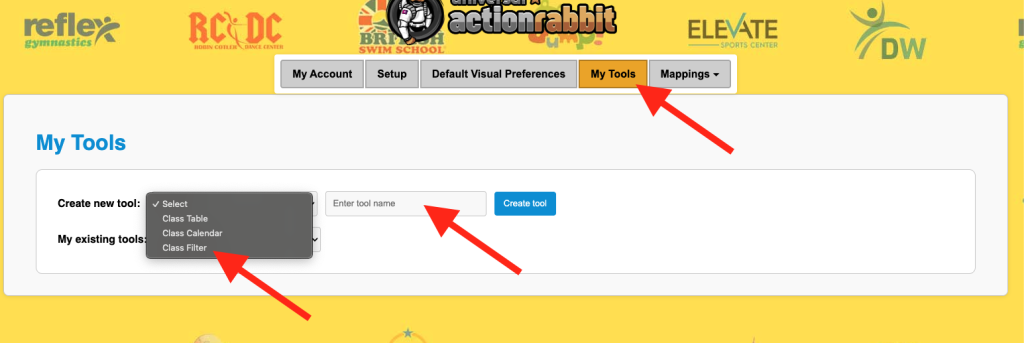
To Create a New Class Calendar Navigate to “My Tools”. Then select “Class Filter” from the Drop Down. Then Name it and click “Create Tool”
Access a Saved Class Filter
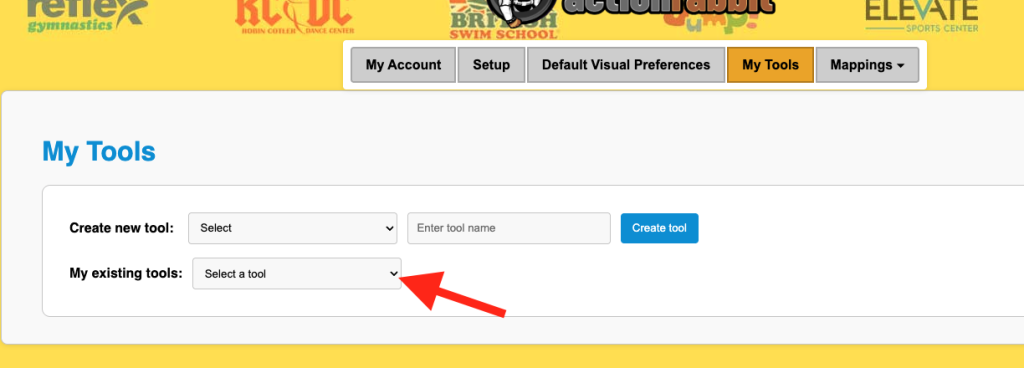
Navigate to My Tools and Locate your existing class filter beneath the “My Existing Tools” Drop Down.
Why the Class Filter Exists
The class filter makes enrollees lives easier because it navigates them through a series of options that you specify.
Let’s say you have a Gymnastics page on your website..and you have many types of gymnastics. Here are some possible coombinations.
- Gymnastics
- Intro
- Rec
- Team
- Intermediate
- Rec
- Team
- Advanced
- Rec
- Team
- Intro
Because of all these different options you may infer that you need to provide a lot of information about each class type on your website or app. Perhaps you feel like you need a webpage about each. But you can do that all in the Class Filter. After all you will need to answer questions about what constitutes Intro, Rec, Team, etc.
Building the Class Filter - Step 1 - Location
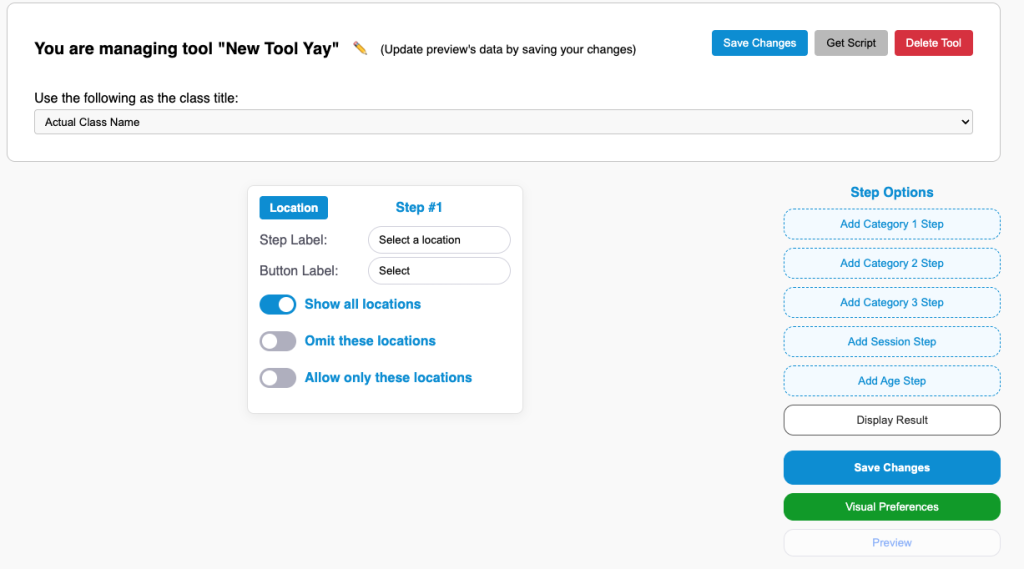
The Class Filter will always start with a location step. However, that does not mean that the filter will always render a location step. That just depends on if there are more that one location to choose from.
When setting up the class filter you can choose to show multiple locations (if your school has multiple locations). You can also show locations from various Jackrabbit ORG IDs all together in one spot.
If the filter you build only pulls in 1 location it will skip over this step and remove that from your class filter and it will pull all the data it uses from the location that you specified.
The Filtering Process
Well the filtering process is like it sounds, a “Filter”. That is helpful because you only get what is the result of the step before. And at the conclusion of the filter you will ALWAYS get a result. There is never a circumstance where a result isn’t rendered. The is in comparison to the other filtering processes where perhaps you opt to select a combination of filters and the result is “Nothing Matches” That can’t happen with the class filter process.
Adding Steps to Your Filter.
You can add Categories, Session, and Age steps to your filter. What makes sense for some schools may not make sense for other schools. To add a step you click the type of step in the right hand column.
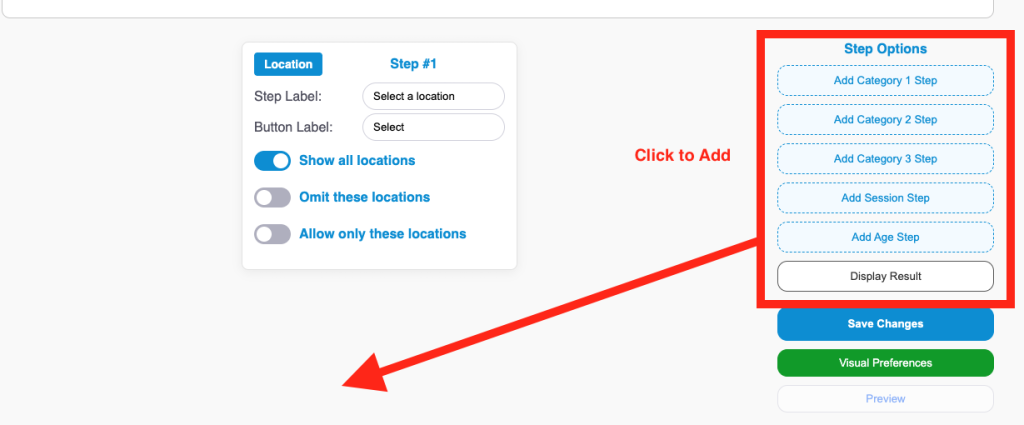
Please keep in mind if you choose to Omit Categories or Allow only certain categories in your filter step you are forcing the filter to take that into account when it looks for matches. So you should have a clear idea of the type of category, session, and age scheme your Jackrabbit location utilizes.
Displaying a result
The final Step of any filter is the “Display Result” Step. To display a result the Class Filter needs to know how you would like it to display a result. You will add a default tool that it will utilize by selecting an option from the drop down. Youc an use a default tool or a highly custom tool. You will see all your tools that you have created in this list.
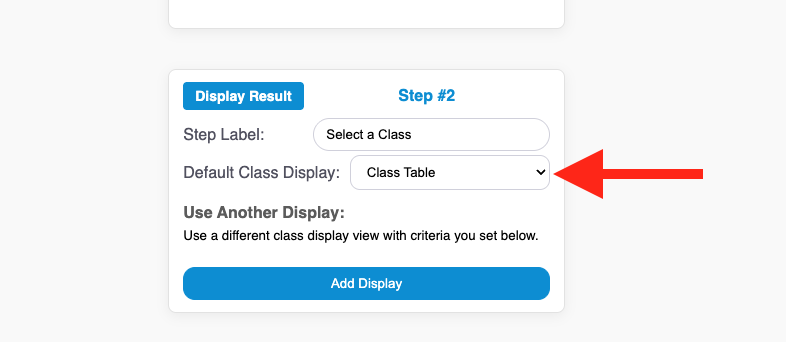
You can also choose to render a highly customized tool on specific unique circumstances. Watch this video walking you through that part.
Dynamic Links
Sometimes you have a Class Filter on a Central Enrollment page of your website. You can link to your class filter page and have the filter autocomplete your steps so you are only showing users what they expect to see.
For example lets say you have a Ninja or Piano Class Page on your website that talks about your Ninja or Piano Classes. And on that page you have a button that says “Enroll in Piano Classes” or “View our Piano Schedule”. And you want to link to your filter but you don’t want to show the user your Saxaphone, Guitar, and Drum Classes after the clicked a link that said “Piano”. So you Generate a dynamic link by clicking “Generate pre Filled URL”.
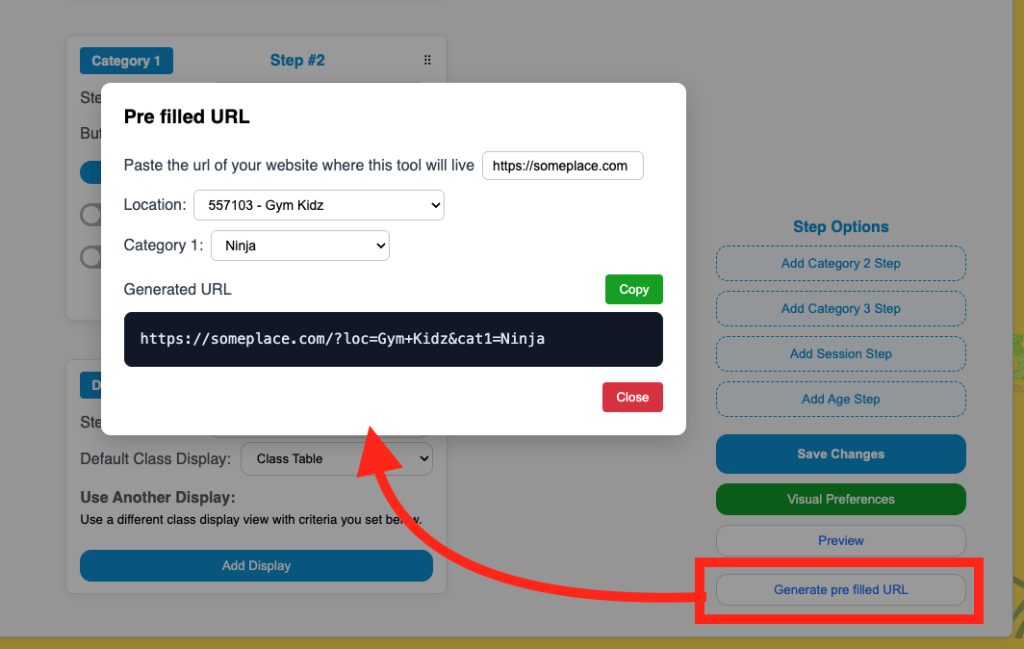
This will only complete the steps that you provide information for. If you wanted to you could preselect ALL the steps and just render a result. You might do that if you wanted to display “Introductory Toddler Piano Classes in Ventura”. That is highly specified.
The great part about the links is you can choose to use them wherever you need them, or not at all.