Building a Custom Class Table
How to Create a Class Table
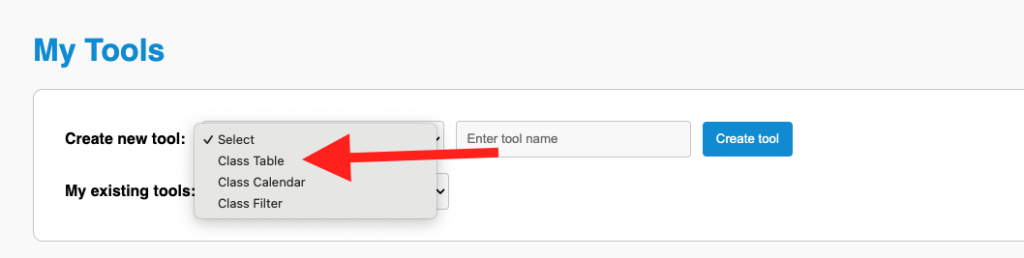
Navigate to my tools and select “Class Table” from the “Create New Tool” drop down.
Then you will give your class table a name and click “Create Tool”
Adding General Table Options
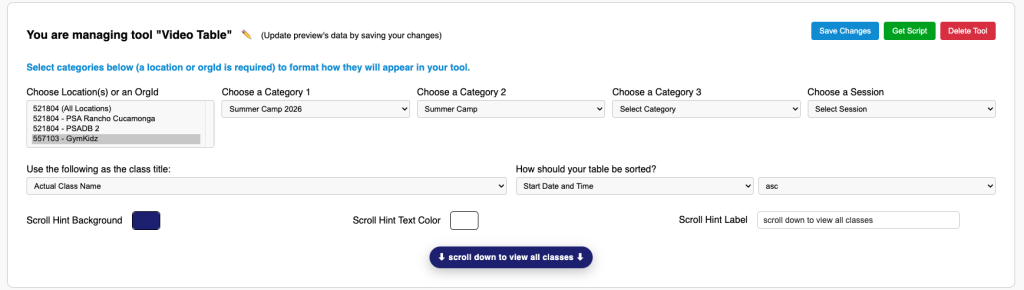
General Table options are the following:
Locations:
Choose one of many of your locations to pull jackrabbit data from.
Category 1
If you want to filter out your data to show only Classes from a Category 1 you can select that category.
Category 2
If you want to filter out your data to show only Classes from a Category 2 you can select that category.
Category 3
If you want to filter out your data to show only Classes from a Category 3 you can select that category.
Session
If you want to filter out your data to show only Classes from a Session you can select that session.
Class Title
As opposed to showing the class name which in Jackrabbit many schools tend to use names like “SUM26 EB Wk2” you can just list a category or mapped category name to display in place of the class name for a better experience. For example the Class Name listed above might stand for Summer 2026 Early Bird Week 2
Default Table Sorting
Users can tell a Class Table tool to sort by any column you allow sorting by. But by default you can specify how you want your table to be sorted when it appears the very first time on a page load. And then furthermore you can tell it to sort in the direction you prefer.
Scroll Hint
The scroll hint is a tool that provides a scroll prompt when you are using a CMS like Wix that includes snippets inside an container on your website. Because it includes it in a container it can sometimes cause that container to have a scroll bar. If there is a scroll bar Universal Action Rabbit will add a Hint for users letting them know that there is more classes listed if you scroll down.
Modifying your Branding
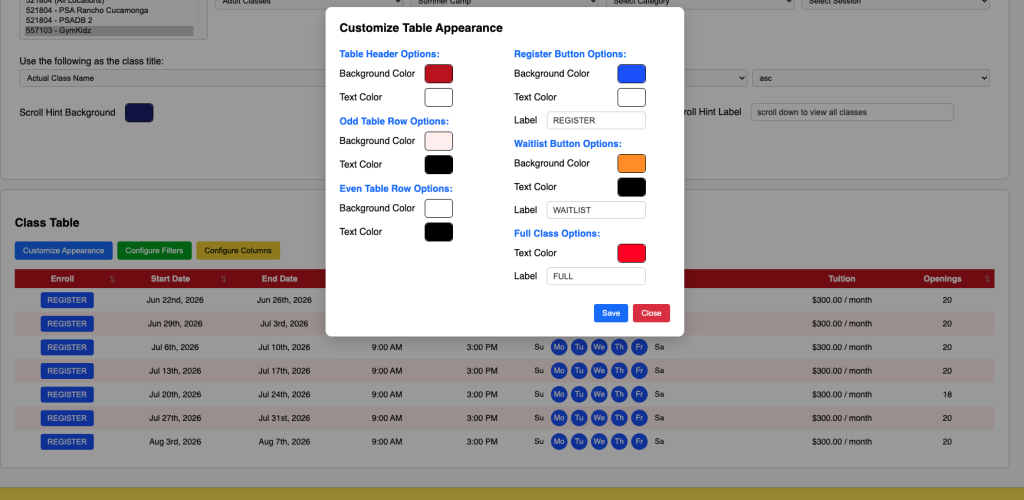
You can change the look of your table by clicking the “Customize Appearance” button. You can also Modify your button labels.
Modifying the Layout
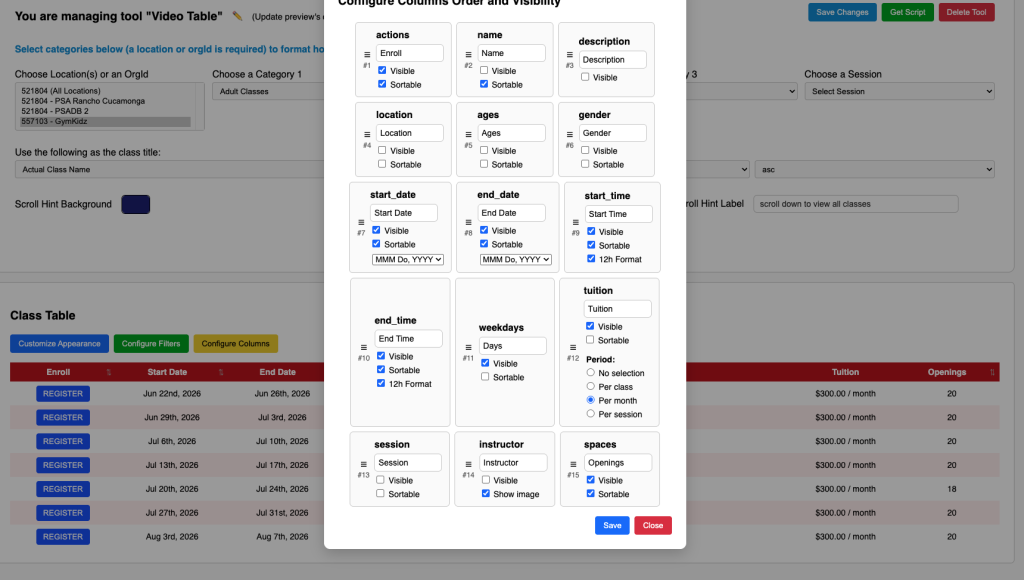
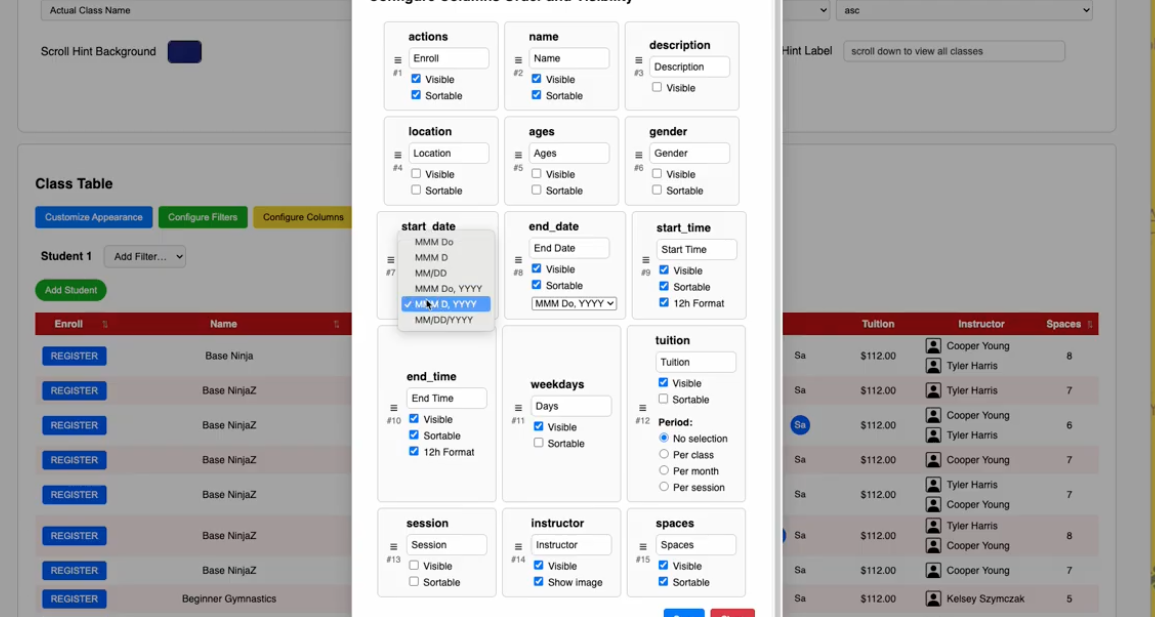
Turn On an Off any column you want or don’t want to appear. You can also define if you want any individual column to be sortable. Finally you can drag the boxes in the modal into place and your table columns will reorder themselves.
Table Filters
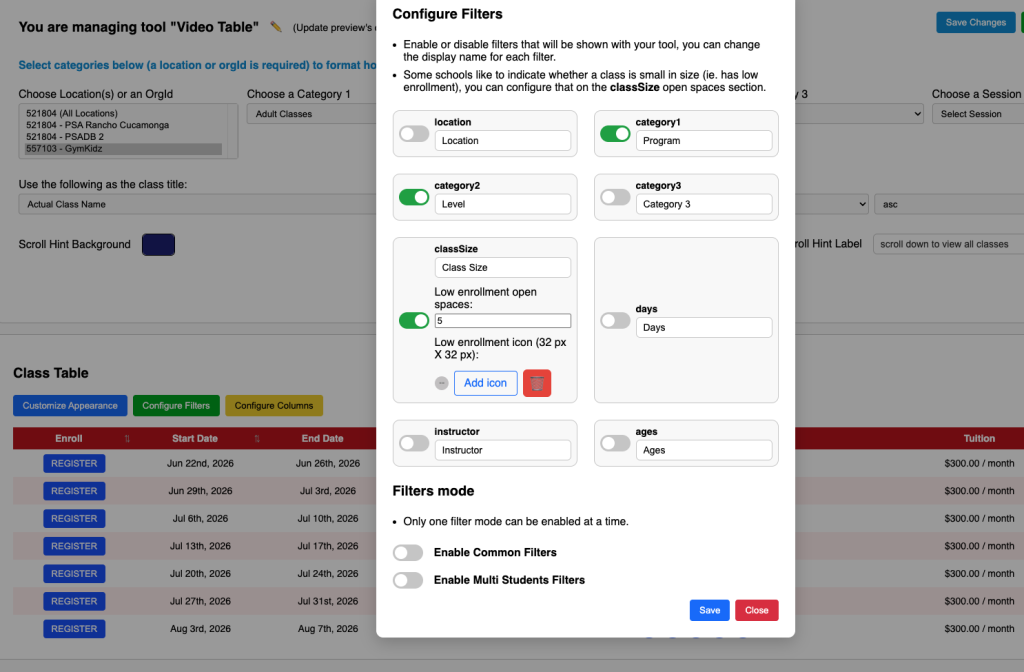
You can choose to include filters for your table or exclude them. You can also rename them.