Webflow
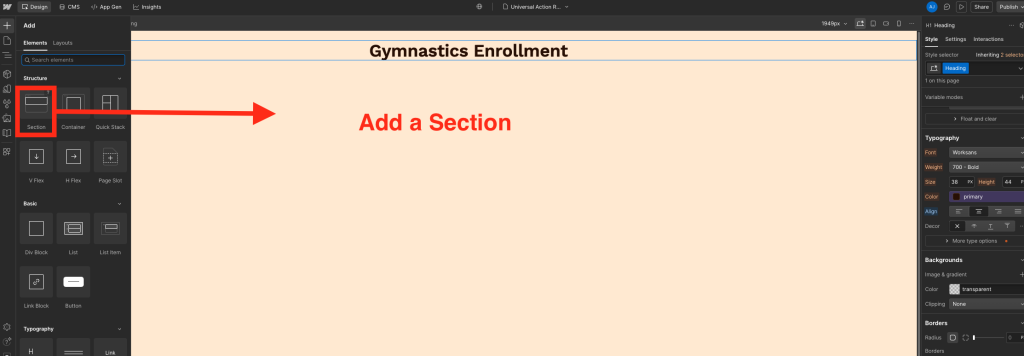
Adding a Section
In the Webflow editor, start by adding a Section to your page. You can find this by clicking the “+” in the top left corner of the editor page.
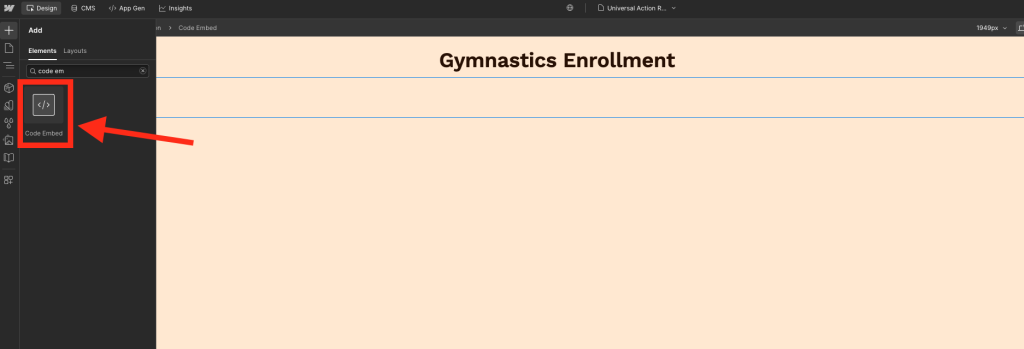
Add a Code Embed Element
Next, you will search for the “Code Embed” element in the same place you just added a section (by clicking the “+” in the top left). You can search in the top search bar for “code embed”. Click “Code Embed”
Copy the snippet from UAR
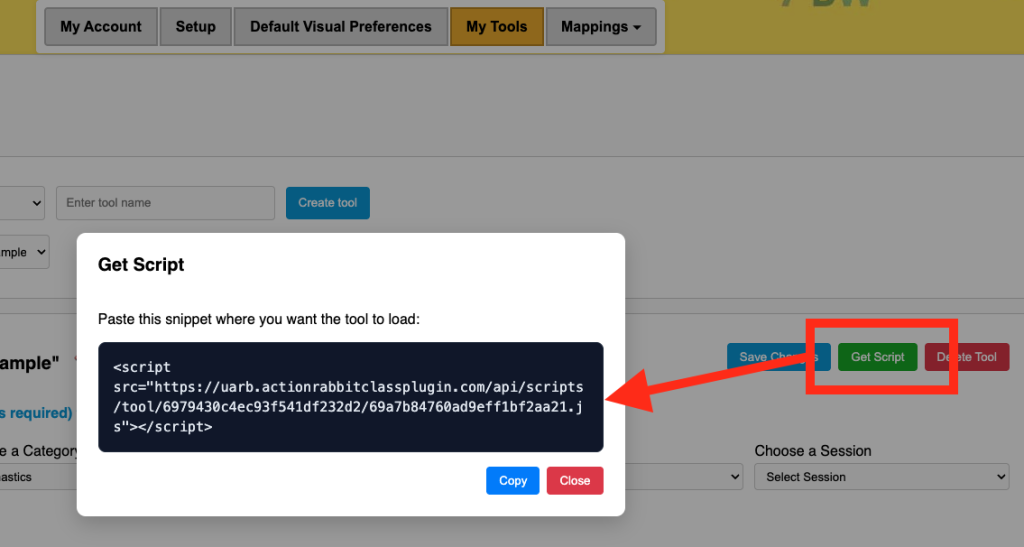
Inside UAR navigate to the tool you want to place on your page. Then click the “Get Script” button. On the resulting modal, click “Copy” to copy the snippet.
Paste the snippet in Webflow
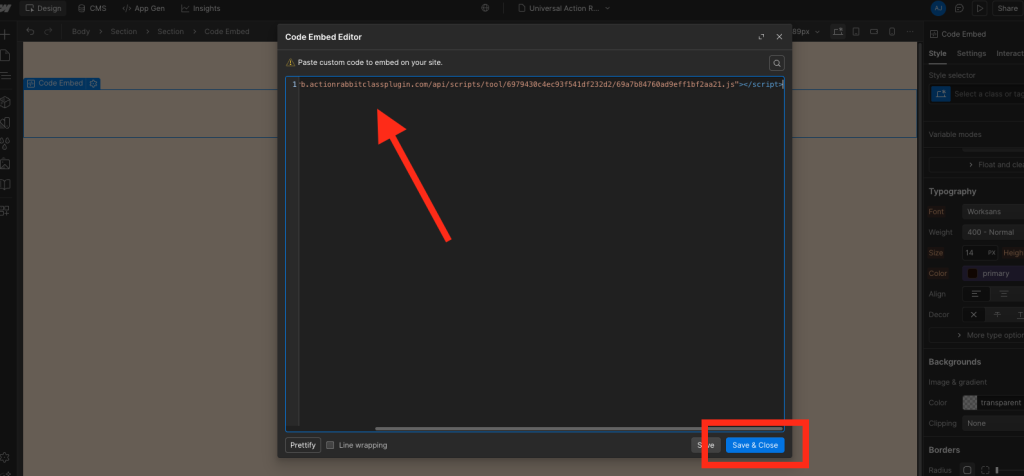
Back in Webflow, click the Code Embed element on the page and it will produce a modal where you will enter your snippet. Then click “Save & Close”
Publish your changes
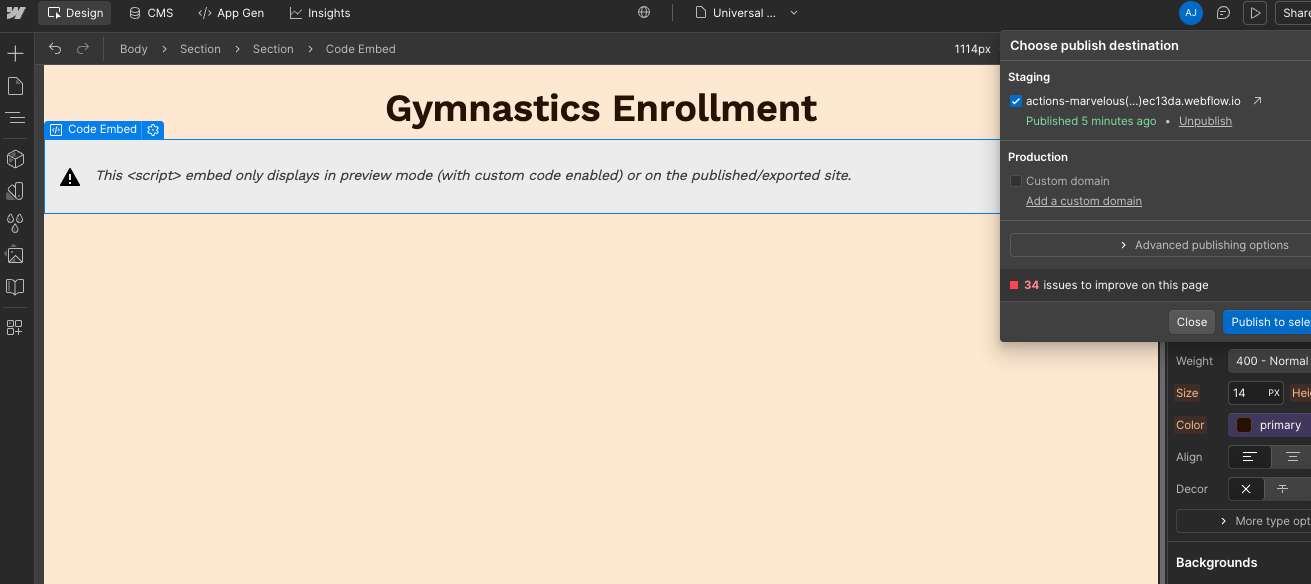
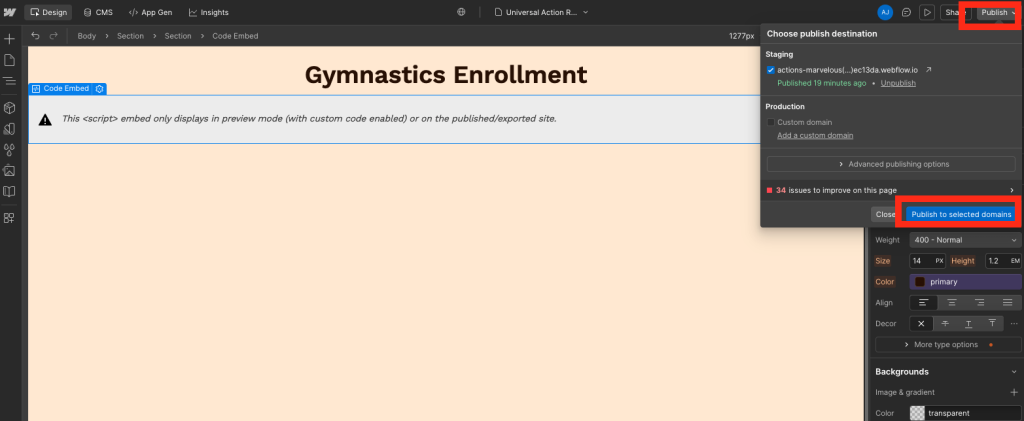
To publish your changes you need to click the “publish” button int he top right. In the resulting drop down webflow gives you the ability to publish to a Staging environment which is helpful if you want to see what the changes will look like before publishing to your Production website. You can check the box next to whichever environment you want.
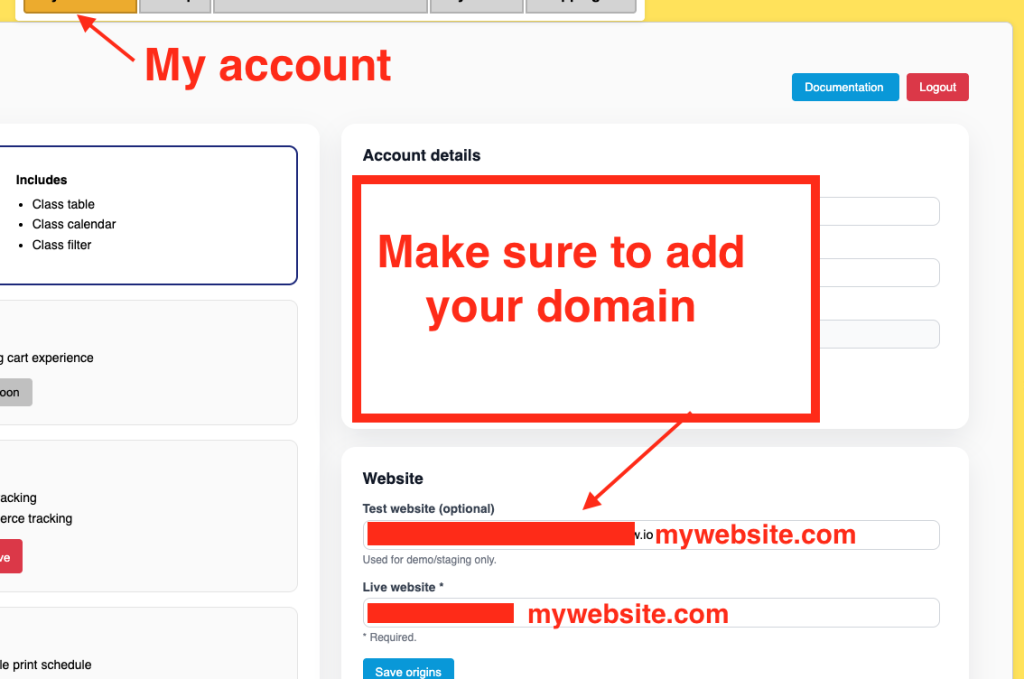
Make sure to add your domain
If the tool says if can’t be displayed, double check that you have added your domain inside Universal Action Rabbit’s dashboard under “my account”.