
Analytics

The Purpose of Analytics
We all want to know what is going on. It’s why people install doorbell camera, etc. But Analytics tracks more than a doorbell camera. It can tell you what is working and what isn’t. It tells you how many people came from a campaign that was launched and actually ended up registering for a Camp my academy was offering. That should be important to you.
The Lifecycle of Analytics.
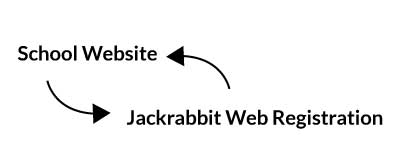
Users start out on your website looking for classes. Then they end up on the Jackrabbit registration portal with a class pre populated. Then they sign up for a class. Then they are brought back to your website ( the place they started) to a confirmation page to complete the cycle.
Setting It Up
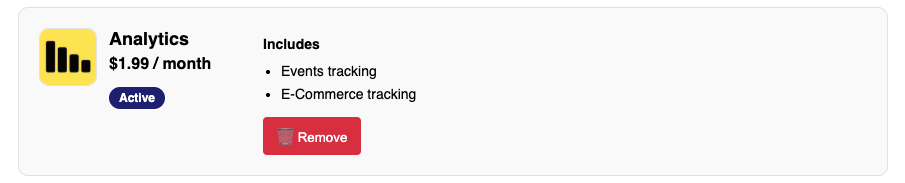
In your UAR Dashboard you will turn on Analytics. Then a Box will appear titled “Analytics”.
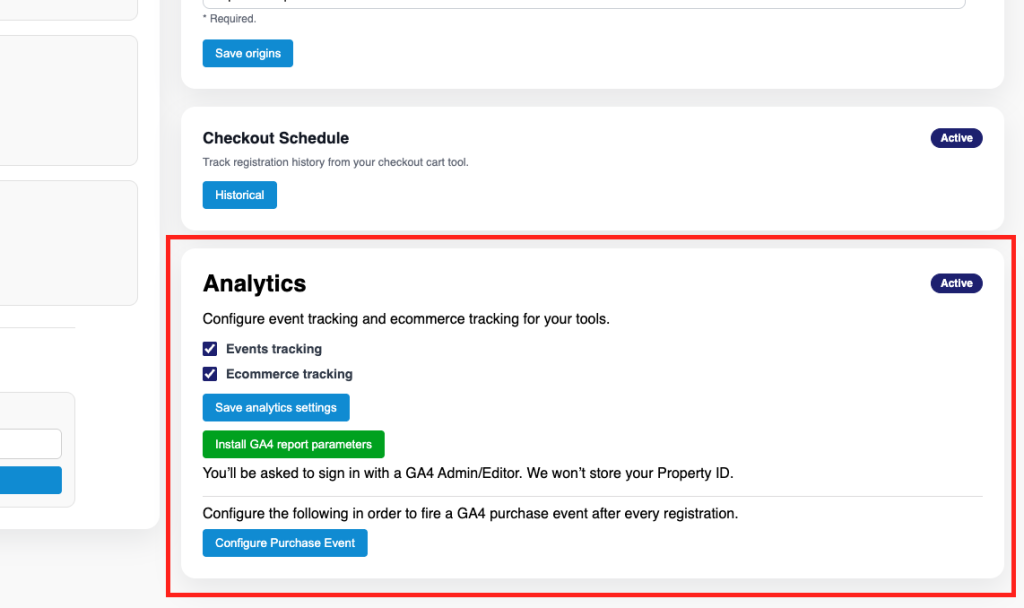
Check the boxes next to the type of Analytics tracking you want. Then click “save analytics settings”.
Installing GA4 Parameters.
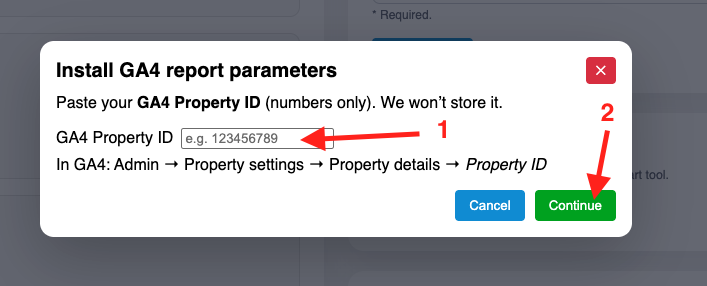
Click the green button titled “Install GA4 Report Parameters”. You will be required to enter your Property ID. Here is a link to google which explains finding your Google Analytics property ID.
After adding your ID then click “Continue”. You will be asked to login to google analytics and then UAR will install the following parameters:
- Tool Parameters
- Tool Type
- Tool Name
- Class Filter Parameters
- Result Tool Type
- Result Tool Name
- Results Count
- Steps Path
- Class Table Sorting
- Column Label
- Sorting Direction
- Result Filtering
- Filter Key
- Filter Selected Value
- Filter Action
- Schedule Builder (Shopping Cart)
- Students Count
- Classes Count
Please Note: UAR does not need to install ecommerce parameters.
Specifying the return URL after a registration is complete.
The proper user experience is the return the user Back to your website once they’re finished enrolling. To do so Login to your Jackrabbit Portal. Then, go to System (Cog Wheel) > Settings > Online Registration > Settings. Find the box titled “Online Registration Settings”
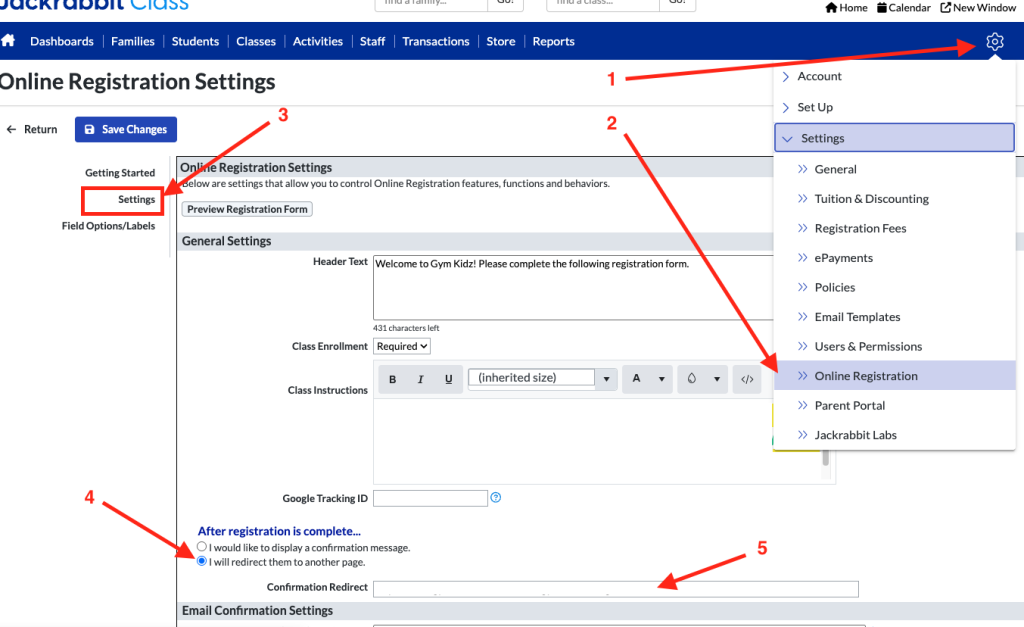
Under “After Registration Is Complete….” toggle the option for “I will redirect them to another page” and put your confirmation page from your website.
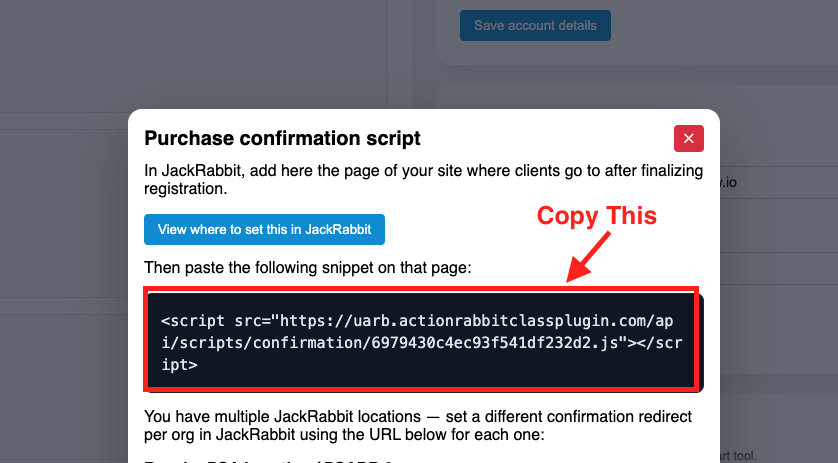
Your Confirmation URL
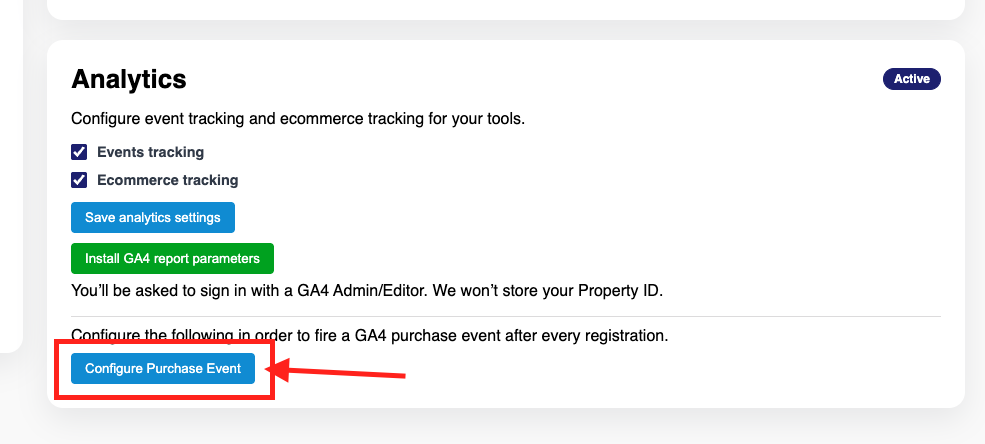
Click Configure Purchase Event. Then in the resulting box you will have the script to drop into your confirmation page.
What to look for in Google Analytics
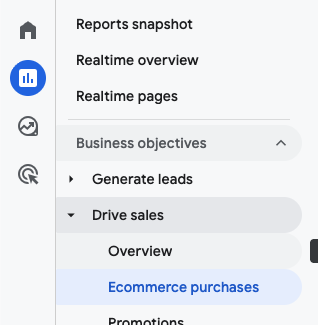
In your Drive Sales > Ecommerce Purchases report you should start to see values appear within 24 hours of the event taking place. Googles eCommerce reporting has a delay so you don’t see events in these reports immediately.
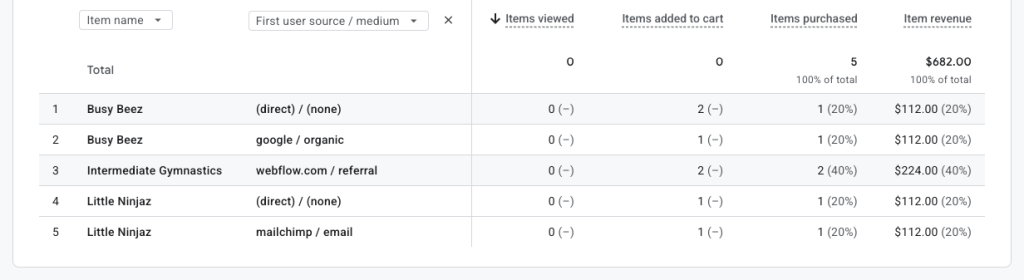
You can segment these however you like. If you are a strict UTM marketer you will get more in depth usable data to segment by.