
Sending Schedule Builder Data to your CRM

What Information can the schedule Builder Send to your CRM
The schedule builder can send a fairly comprehensive data set to your CRM to process however you need.
Primary Contact
The Schedule Builder will always send:
- Guardian First Name
- Guardian Last Name
- Guardian Email
- Guardian Phone
Other Additional Information
The Schedule Builder can also send:
- Student Count – How many Students are being enrolled
- Class Count – How many classes are being enrolled in
- Category 1s – All the category 1s (Jackrabbit Income categories) from the enrollment
- Sessions – All The sessions being enrolled in
- Location Codes – All the location Codes being enrolled in.
- Class Names – All the Class Names being enrolled in.
- Student Information – The schedule builder can send information about each student and what they’re enrolling in
- First Name
- Last Name
- Date of Birth
- Gender
- Category 1s for this student
- Sessions for this student
- Class Names for this student
- Location Codes for this student
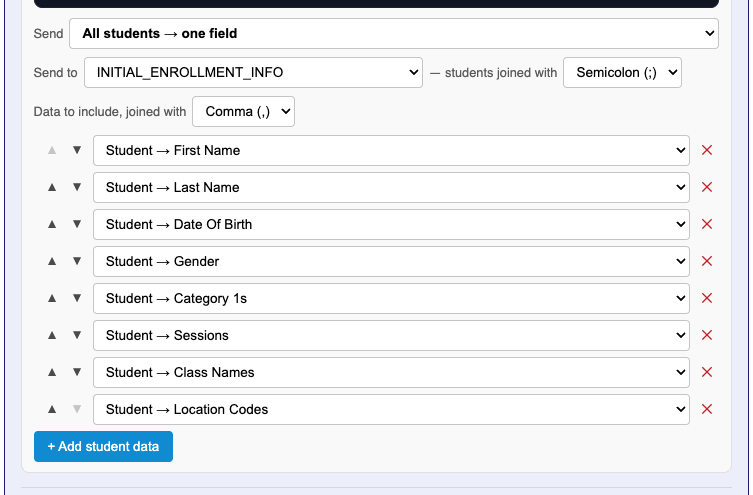
Understanding how UAR passes this information
UAR can pass information about each student in 1 field or over different fields. The difference is Do I want all my student 1 information to be completely separate from Student 2 and Student 3, or do we just want to keep this information in the same field.
Option 1 (All Together)
- Some Field: STUDENT 1 INFO, STUDENT 2 INFO, STUDENT 3 INFO
Option 2:
- Some Field: STUDENT 1 INFO
- Another Field: STUDENT 2 INFO
- Different Field: STUDENT 3 INFO
UAR will ask what information you want to separate the various bits of info:
You can choose from the following
- Comma ,
- Dash –
- Tilde ~
- Bullet •
Lets say we choose Tilde your data would show up like this
Field: [Student First Name] ~ [Student Last Name] ~ [Student Birthdate] ~ [Student Cat1s] ~ [Student Class Names] ~ [Student Sessions]
You can arrange how you would like this information to be ordered